
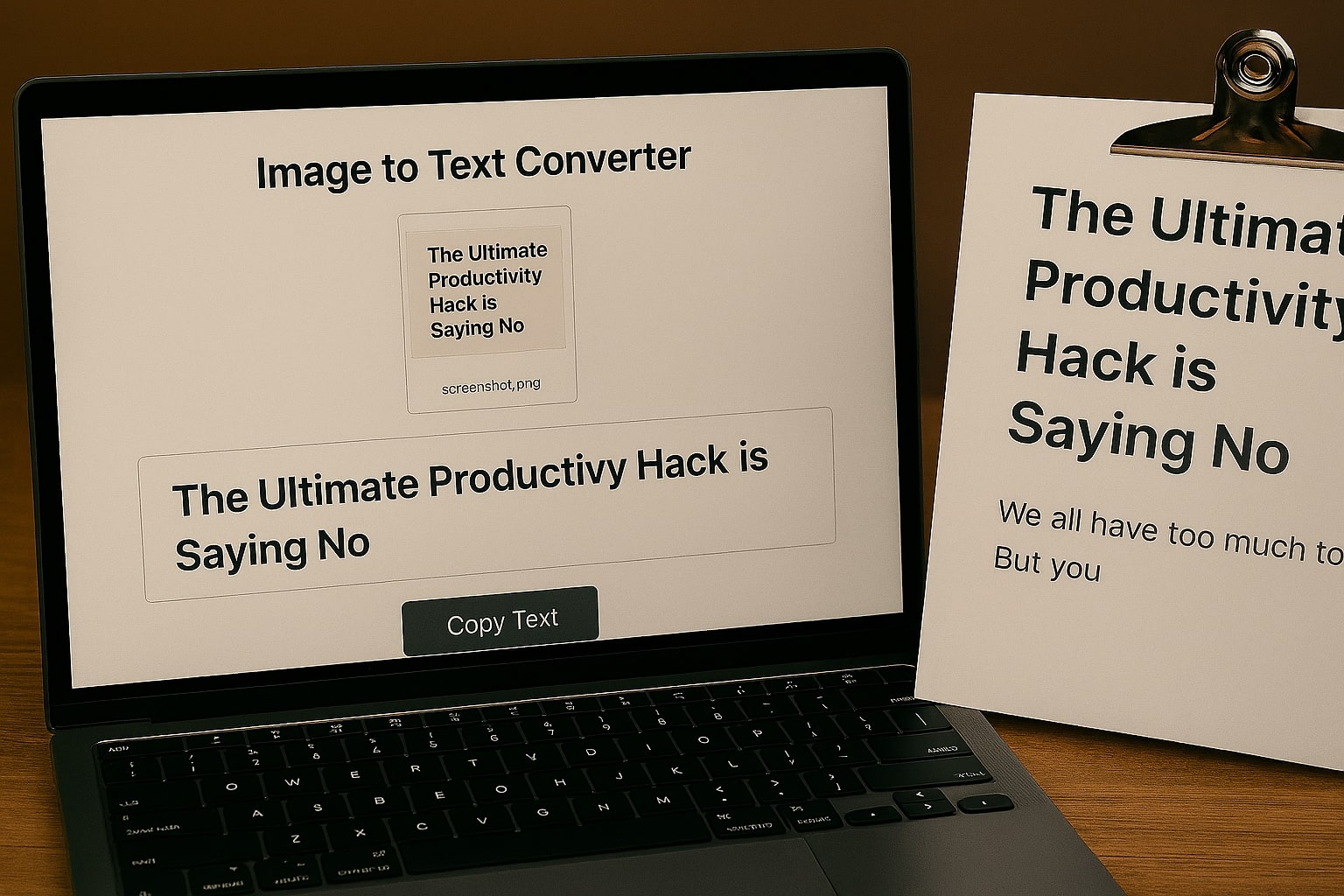
We've all been there: you see important text in a screenshot, a scanned document, or a photo, but you can't select or copy it. Manually retyping everything is tedious and time-consuming. Fortunately, there's a technology called Optical Character Recognition (OCR) that can solve this problem in seconds. This guide will show you the easiest way to extract text from any image.
Step 1: Get Your Image Ready
First, make sure you have the image saved on your device. This could be a screenshot, a photo of a book page, or a scanned JPG file. For the best results, ensure the text in the image is as clear and straight as possible. While OCR technology is powerful, it works best with high-quality source images.
Step 2: Use a Free Online OCR Tool
The fastest way to extract text is by using a web-based OCR tool. These tools use AI to analyze your image and recognize the characters within it. Here's how to do it with our tool:
- Navigate to our Image to Text Converter.
- Click the upload box or simply drag and drop your image file onto the page.
- The tool will automatically start processing the image locally in your browser.
Step 3: Copy Your Editable Text
After a few moments, the tool will display all the extracted text in a text box. You can now easily click the "Copy Text" button to copy everything to your clipboard or edit the text directly in the box to fix any small recognition errors.
Why a Privacy-First OCR Tool Matters
Many online OCR tools require you to upload your files to their servers. This can be a major privacy risk if your image contains sensitive info. Our OCR Tool is different because it is 100% private. The entire process happens in your browser, meaning your image never leaves your computer. It is the most secure way to digitize your documents.