
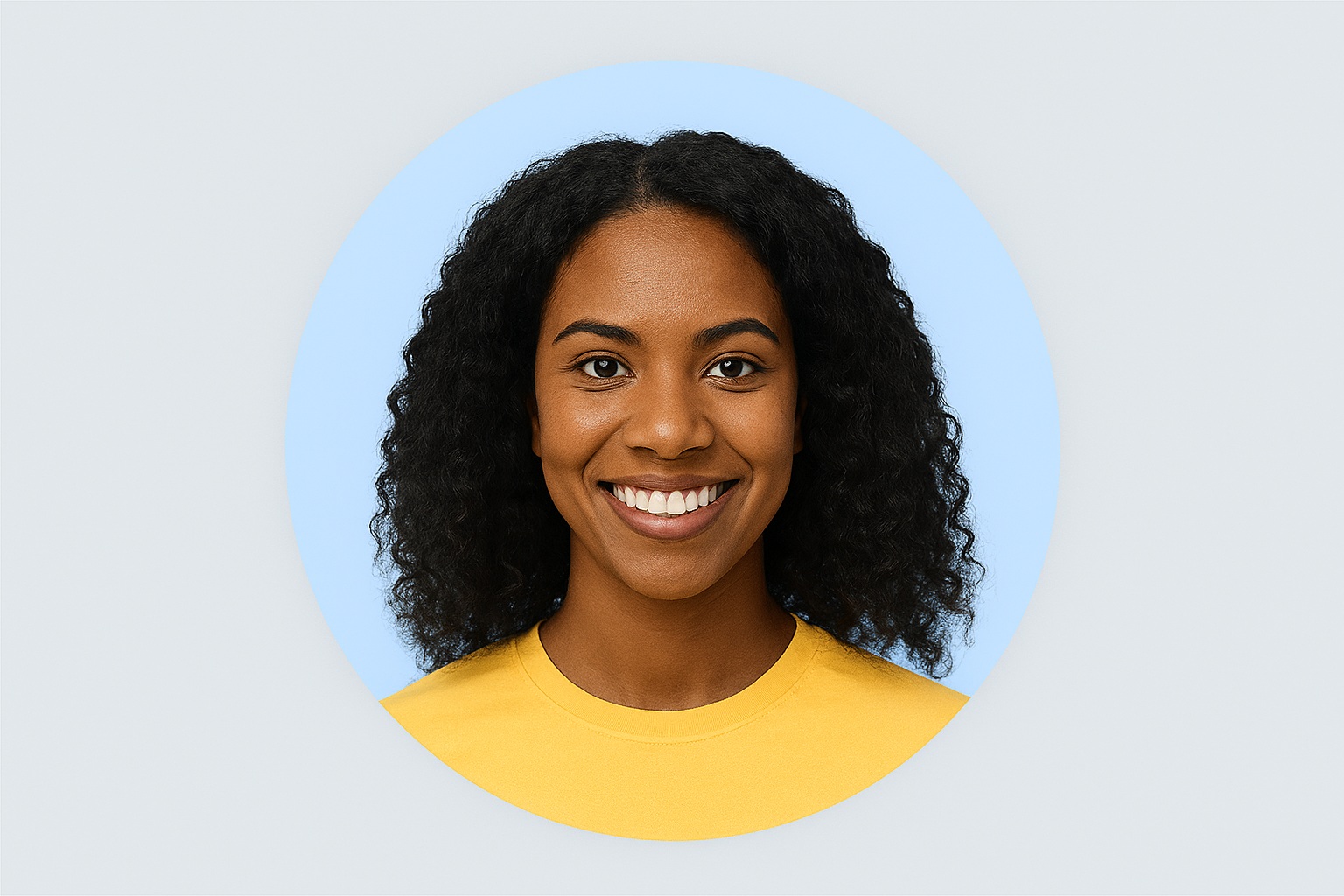
Your profile picture is your digital first impression. For professional platforms like LinkedIn, your resume, or your company website, a clean, polished headshot is non-negotiable. But what if you don't have the time or budget for a professional photoshoot? The good news is, you probably already have a perfect photo on your phone. You just need to edit it correctly. This guide will show you how.
Step 1: Choose the Right Starting Photo
Look through your camera roll for a photo with these qualities:
- Good Lighting: Your face should be clearly visible and well-lit, preferably with soft, natural light (like from a window).
- High Resolution: Avoid blurry or pixelated images. A clear photo from a modern smartphone is perfect.
- Simple Expression: A friendly, natural smile or a neutral expression works best.
Don't worry about the background at all! It could be your living room, a park, or a busy street. We're going to completely remove it.
Step 2: Instantly Remove the Background
The key to transforming a casual photo into a professional headshot is to eliminate the distracting background. This isolates you as the subject and gives the image a clean, focused look.
- Go to our Free AI Background Remover tool.
- Upload or drag-and-drop the photo you chose in Step 1.
- Our AI will automatically detect you and remove the background in seconds, giving you a high-quality image with a transparent background (a PNG file).
Because our tool is 100% private and works in your browser, your personal photo is never uploaded to a server, guaranteeing your privacy.
Step 3: Add a Simple, Professional Background
Now that you have your cutout, you need to place it on a new background. You don't need a fake office. For a modern, professional look, a simple solid color or a subtle gradient is best.
- Good Choices: Neutral colors like light grey, dark grey, soft blue, or even a branded color.
- How to do it: You can use any free design tool like Canva, or even basic software like PowerPoint or Google Slides. Simply create a new slide/design, set the background color, and import your transparent PNG file on top.
Step 4: Crop for a Headshot Frame
The final step is to crop the image correctly. A professional headshot typically focuses on the head and shoulders.
Frame the shot so your head is in the upper third of the image, with a little bit of space above it. A square (1:1) or slightly vertical crop works best for most profile picture formats. Save your new, finished image!
Conclusion
You don't need a professional photographer to create a professional profile picture. By combining a good source photo with a powerful background removal tool, you can create a high-quality, polished headshot in less than five minutes, for free. Make your first impression count!