
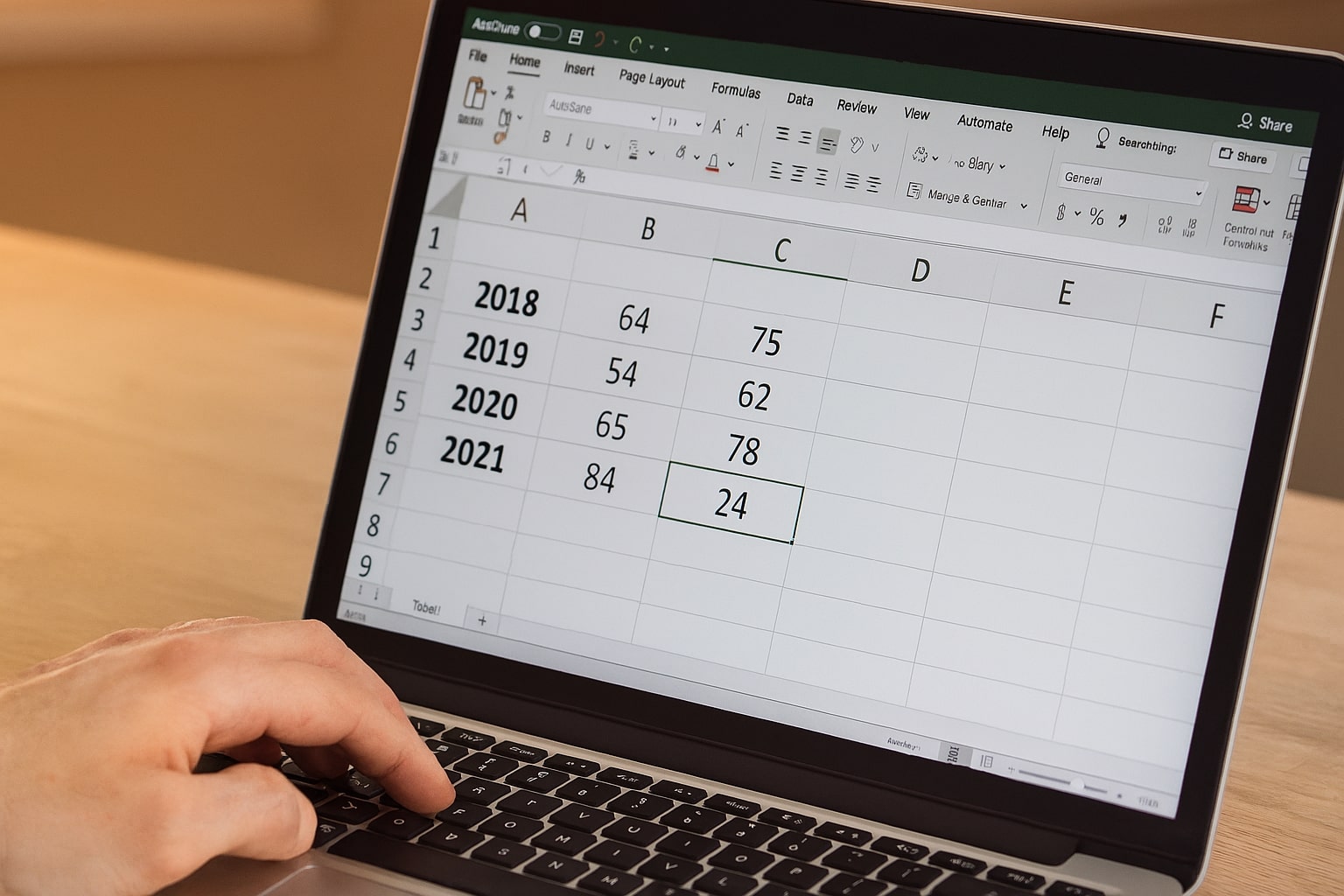
It's a common and frustrating problem for researchers, students, and data analysts: you have an important data table, but it's trapped inside an image, a scanned document, or a non-selectable PDF. Manually retyping every cell is not only incredibly tedious but also prone to errors. Fortunately, there’s a simple, two-step method to extract this data and get it into a usable spreadsheet format like Excel or Google Sheets.
The Technology: What is OCR?
The magic behind this process is Optical Character Recognition (OCR). OCR is a technology that analyzes an image, identifies characters and text, and converts them into machine-readable, editable text. Modern OCR tools are incredibly powerful and can recognize the structure of a table, preserving rows and columns.
Step 1: Extract the Raw Text with an OCR Tool
First, you need to convert the image of your table into plain text. The key is to use a tool that preserves the spacing and line breaks of the table structure.
- Get a clear screenshot or photo of the table. Make sure it's as flat and well-lit as possible.
- Go to our Free Image to Text (OCR) Converter.
- Upload or drag-and-drop your image into the tool.
- After processing, the tool will display the raw text from your image. The OCR will do its best to keep the columns aligned with spaces or tabs.
- Click the "Copy Text" button.
Privacy Tip: If your table contains sensitive data, it's crucial to use a client-side tool like ours. Our OCR tool processes the image entirely in your browser, so your private information is never uploaded to a server.
Step 2: Paste and Format in Your Spreadsheet Software
Now that you have the raw text on your clipboard, it's time to bring it into Excel, Google Sheets, or any other spreadsheet program.
- Open a new, blank spreadsheet.
- Select the first cell (A1) and simply paste your copied text (Ctrl+V or Cmd+V).
- Initially, the data might look messy or all be crammed into one column. This is normal.
- Use the "Text to Columns" feature. This is the most important part. Select the column containing your data, go to the "Data" tab in your spreadsheet software, and click "Text to Columns."
- A wizard will appear. Choose "Delimited" and then select the delimiter that separates your columns. This is usually a "Tab" or a "Space" (you might need to check "Treat consecutive delimiters as one"). Click Finish.
Your data should now snap neatly into separate columns, perfectly recreating the structure of your original table. You may need to do some minor cleanup, but you've just saved yourself hours of manual data entry.
Conclusion
Don't let valuable data stay trapped in images. By combining a powerful OCR tool with the built-in features of your favorite spreadsheet program, you can digitize tables in minutes, not hours. This simple workflow will dramatically boost your productivity and ensure your data is accurate and ready for analysis.